

- Generation and editing in one model: the same weights serve text-to-image prompts and editing instructions, so a workflow does not need to swap checkpoints
- Native 2K output: generate at up to 2048x2048 directly instead of upscaling a smaller result
- Professional typography: dense small text and complex layouts hold up, for infographics, slides, UI mockups, posters, and packaging designs
- Alpha channel support: the VAE carries four channels, so transparent-background images can be generated and edited directly instead of being cut out afterwards
- Multi-image editing: reference images are spliced into the text encoder in slot order. The node exposes
image_1throughimage_16slots, and the prompt addresses them by index, for exampleimage_1is written as<image1> - Localized edits: describe the object or region to change and the rest of the image is preserved
Qwen-Image-2.1 workflow
Qwen Image 2.1 Text to Image
Generate an image from a text prompt at the aspect ratio and megapixel target you select.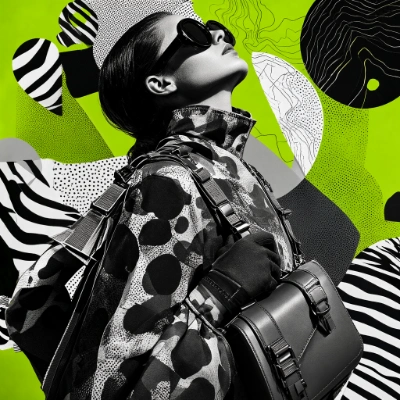
Download Workflow
Download JSON or search “Qwen-Image-2.1” in Template Library
Run on Comfy Cloud
Run ComfyUI online with zero setup
Qwen Image 2.1 Image Edit
Edit an image with an instruction. Add reference images when the edit needs content that is not in the source image, such as putting a garment from a second photo onto the person in the first.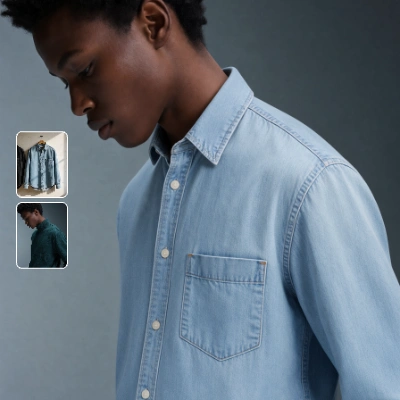
Download Workflow
Download JSON or search “Qwen-Image-2.1” in Template Library
Run on Comfy Cloud
Run ComfyUI online with zero setup
LoadImage nodes:
portrait_model_denim.png
LoadImage node 470 · portrait_model_denim.pngclothing_light_blue_denim_shirt.png
LoadImage node 475 · clothing_light_blue_denim_shirt.png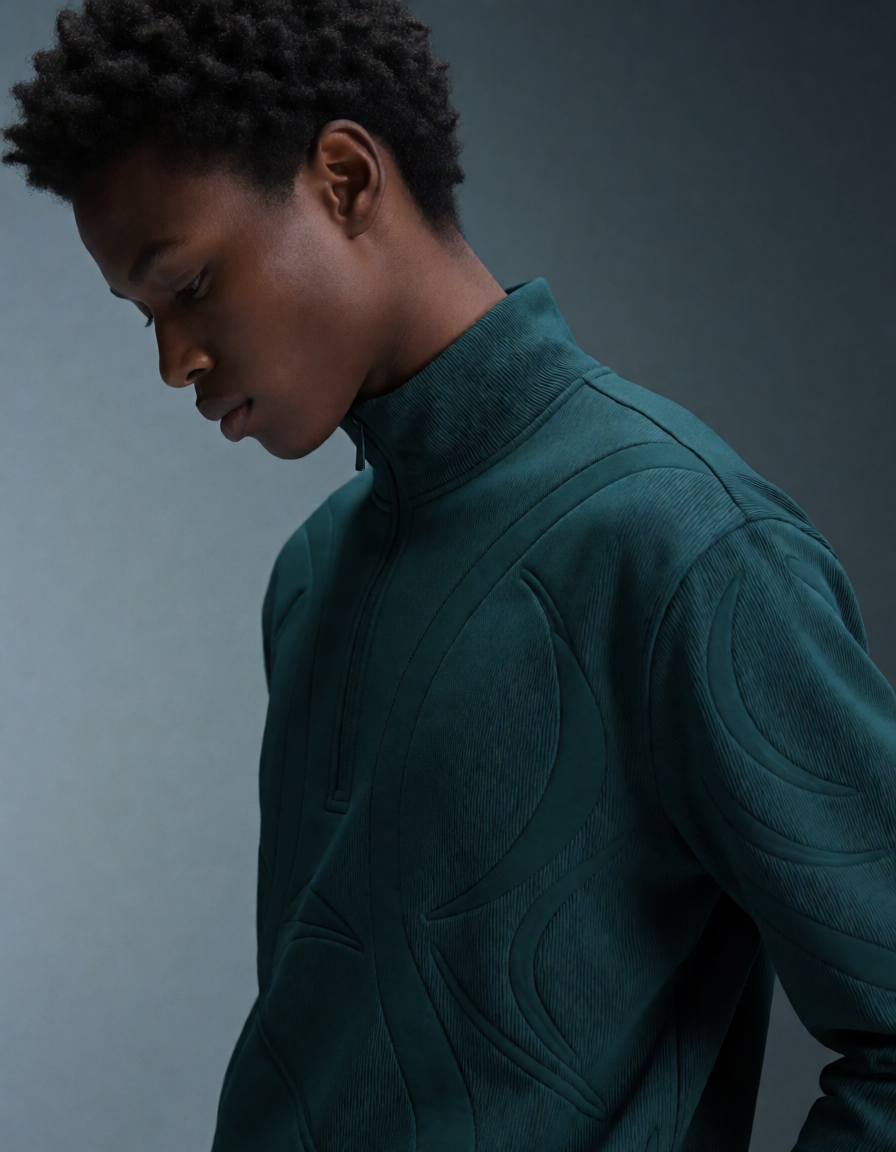
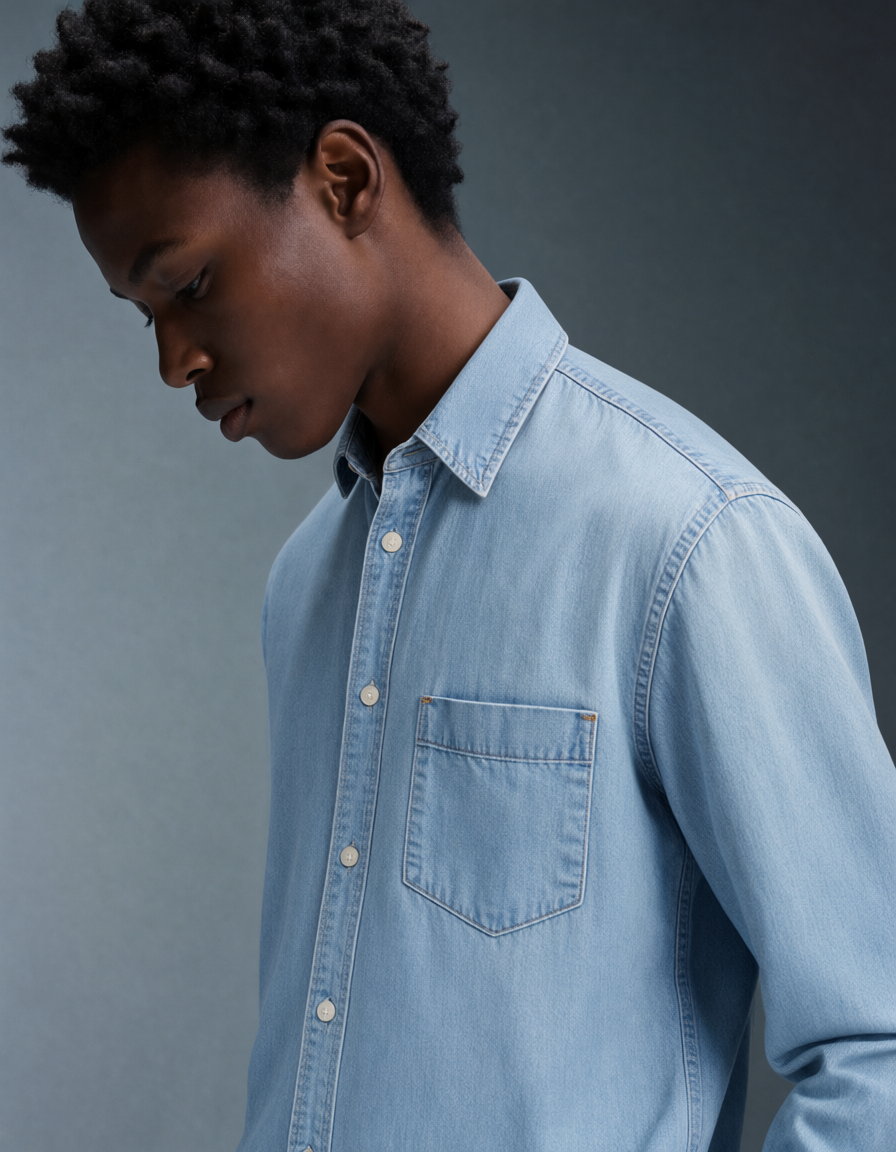
Remove Background: Qwen Image 2.1
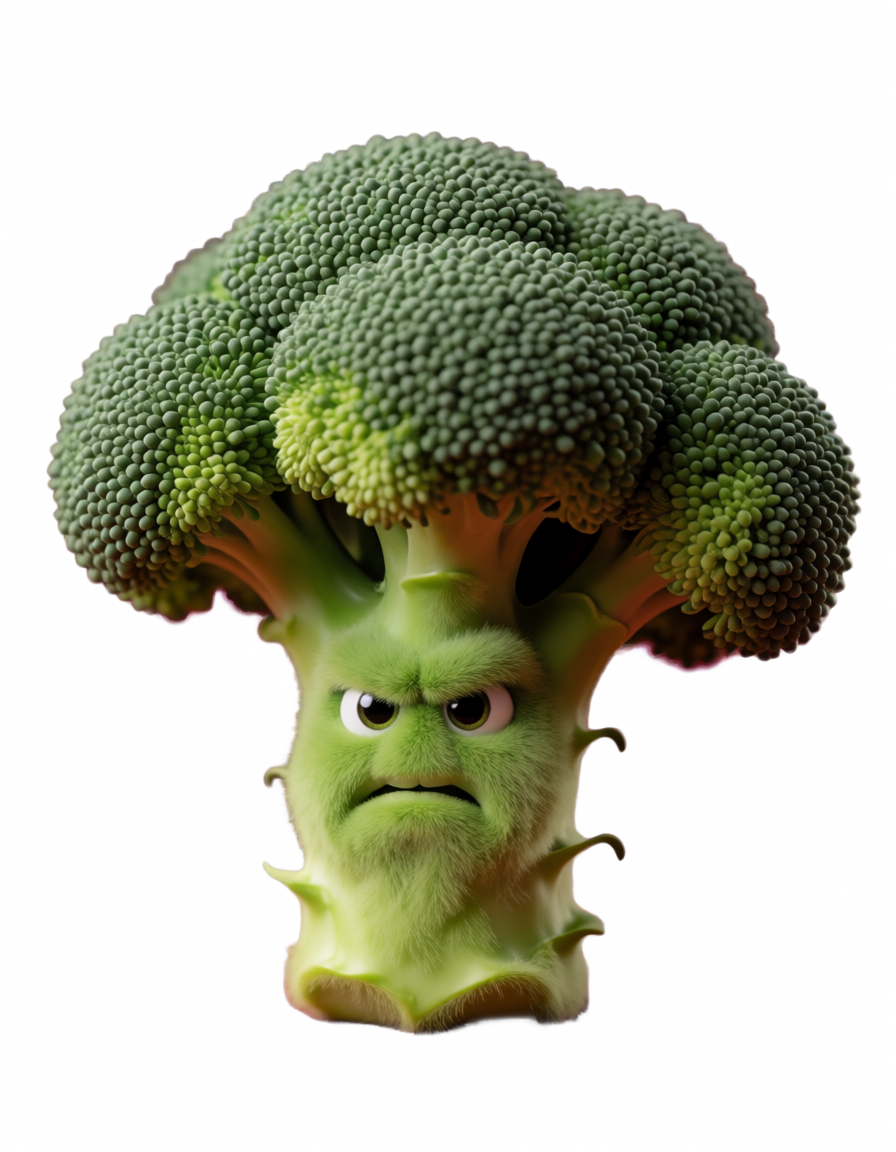
Remove the background from a photo with an edit instruction. The workflow reuses the image edit subgraph with the promptRemove the background, and output a PNG image, then compares the result with the original.
Download Workflow
Download JSON or search “Qwen-Image-2.1” in Template Library
Run on Comfy Cloud
Run ComfyUI online with zero setup
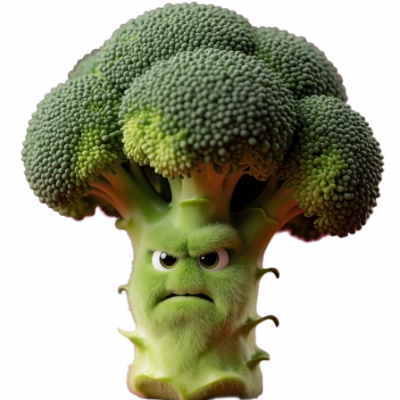
LoadImage node:
angry_broccoli.png
LoadImage node 470 · angry_broccoli.pngModel links
The three workflows load the same files. All of them use the int8 versions of the diffusion model and the text encoder by default. text_encoders- qwen3vl_8b_int8_convrot.safetensors (loaded by the templates, lower memory)
- qwen3vl_8b_bf16.safetensors (full precision, needs more memory)
- qwen_image_2.1_int8_convrot.safetensors (loaded by the templates, lower memory)
- qwen_image_2.1_bf16.safetensors (full precision, needs more memory)
Workflow settings
Sampler settings
All three workflows sample withsteps 25, cfg 1, the euler sampler, and the simple scheduler.
Resolution
Text to image: the Resolution Selector node sets the aspect ratio and a megapixel target, where 1.0 MP is about 1024x1024. Qwen-Image-2.1 generates natively at 2K, so set the target to about 4.0 MP for a 2048x2048 square output. Image edit: the output follows the first reference image’s aspect ratio, scaled to aboutresolution x resolution pixels (default 1024). Set resolution to 0 to keep each reference image at its own size. Turn on custom_size to use the Resolution Selector canvas instead, and keep it close to the resized reference size, otherwise the edit can shift.