> ## Documentation Index
> Fetch the complete documentation index at: https://dripart-chore-sync-comfy-api-v2-spec.mintlify.site/llms.txt
> Use this file to discover all available pages before exploring further.
# Luma Text to Image Partner Nodes ComfyUI Official Example
> This guide explains how to use the Luma Text to Image Partner node in ComfyUI
The Luma Text to Image node allows you to generate high-quality images from text prompts using Luma AI's advanced technology, capable of creating photorealistic content and artistic style images.
## What Luma Text to Image is good at
* **High-quality text-to-image generation**: Creates photorealistic content and artistic style images from text prompts
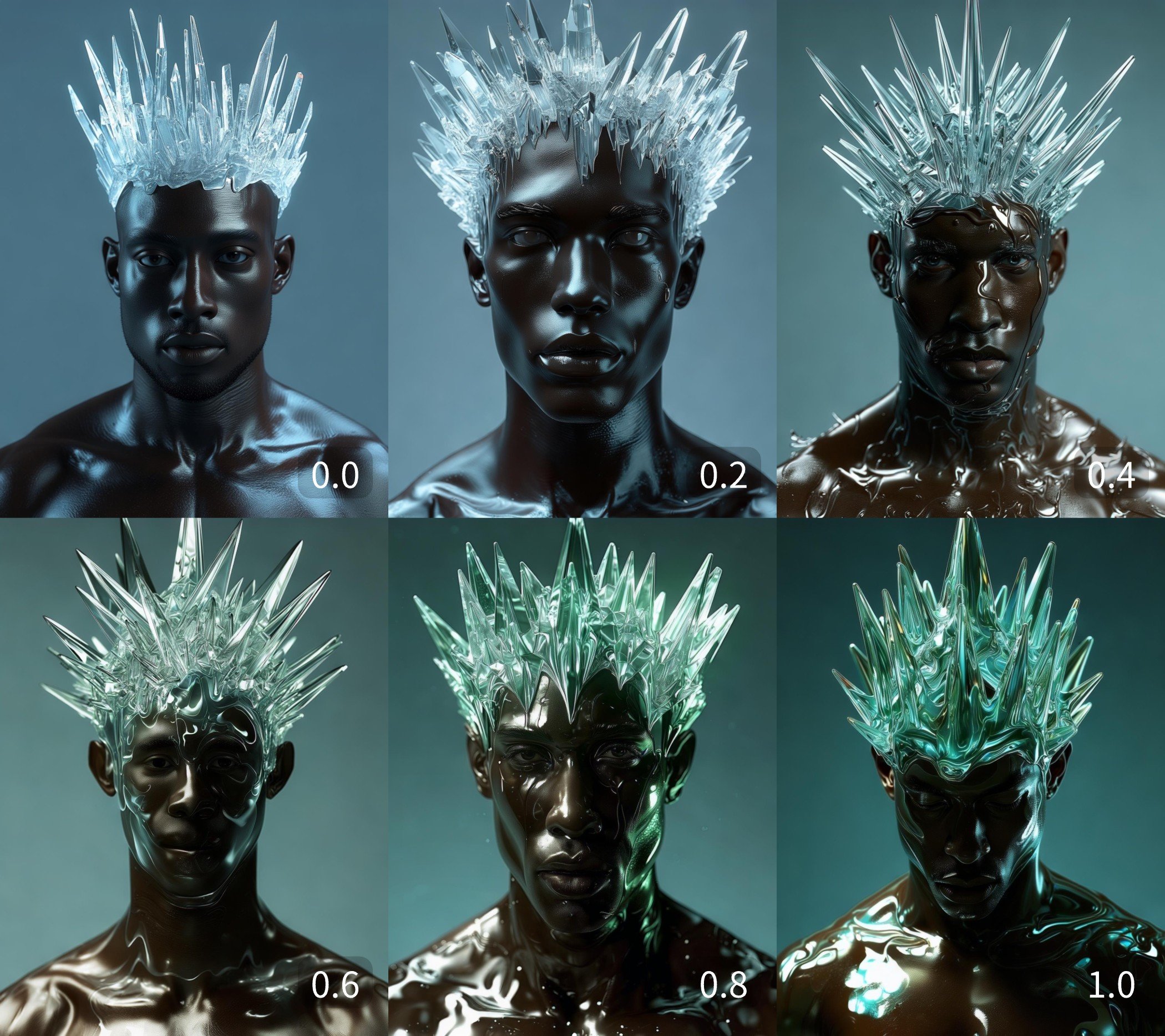
* **Style references**: A `style_image` input guides the look of the result, with `style_image_weight` controlling the style reference image's influence
* **Image and character references**: The `image_luma_ref` input supports reference-guided generation, with up to 4 reference images and character references usable simultaneously
## Example outputs
Style-guided generation at different `style_image_weight` values, showing the style reference image's influence:
 ## Use it in ComfyUI
Run the text-to-image workflow in ComfyUI, locally or on Comfy Cloud
## Use it in ComfyUI
Run the text-to-image workflow in ComfyUI, locally or on Comfy Cloud