> ## Documentation Index
> Fetch the complete documentation index at: https://dripart-chore-sync-comfy-api-v2-spec.mintlify.site/llms.txt
> Use this file to discover all available pages before exploring further.
# Luma Image to Image Partner Nodes ComfyUI Official Example
> This guide covers how to use the Luma Image to Image Partner node in ComfyUI
The Luma Image to Image node allows you to modify existing images based on text prompts using Luma AI technology, while preserving certain features and structures from the original image.
## What Luma Image to Image is good at
* **Prompt-driven image editing**: Modifies existing images based on text prompts while preserving certain features and structures from the original
* **Changing objects and shapes**: The node works well for changing objects and shapes, though it may not be ideal for color changes
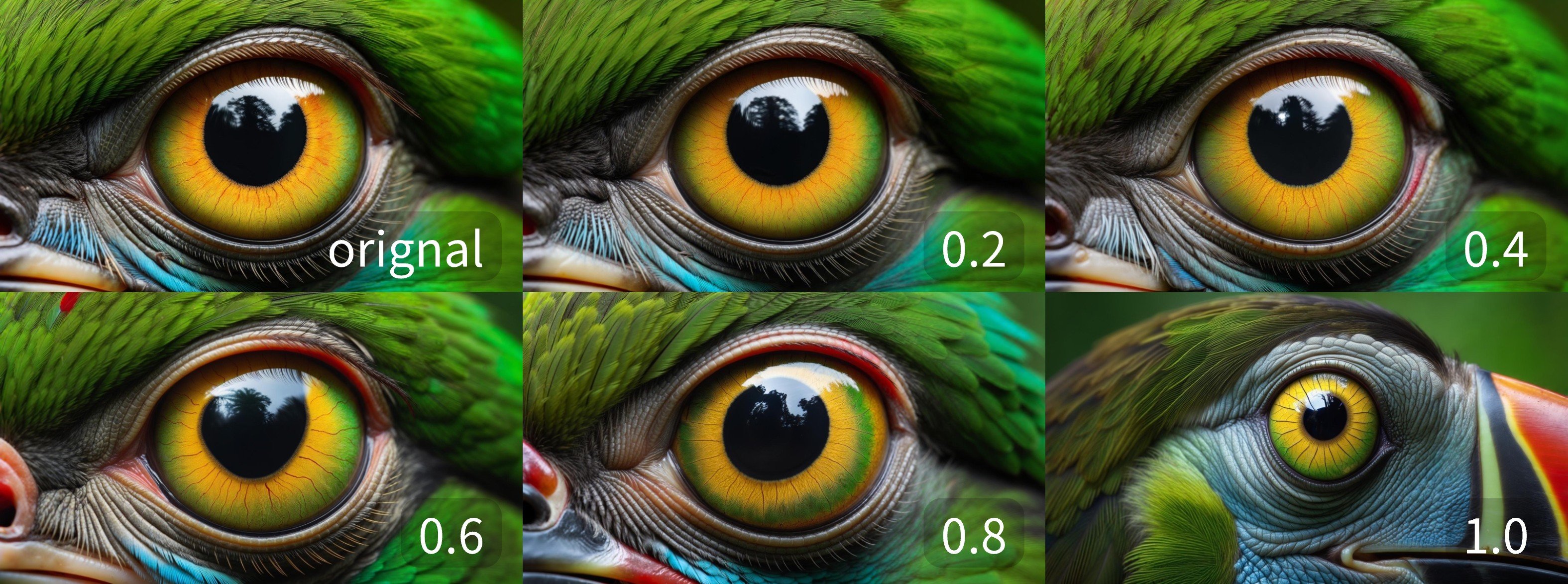
* **Adjustable input influence**: The `image_weight` parameter controls how strongly the input image shapes the result, with lower values staying closer to the original
## Example outputs
Results at different `image_weight` values, showing how strongly the input image influences the generated output:
 ## Use it in ComfyUI
Run the image-to-image workflow in ComfyUI, locally or on Comfy Cloud
## Use it in ComfyUI
Run the image-to-image workflow in ComfyUI, locally or on Comfy Cloud